LeadX Email & Mobile Enrichment

Find the work email and mobile number for the people you need to reach.

Look up a work email or mobile number from a first name, last name, and company, or from a LinkedIn profile URL. Run lookups from the LeadX Chrome extension, inside the LeadX platform, across a spreadsheet, or through the API.

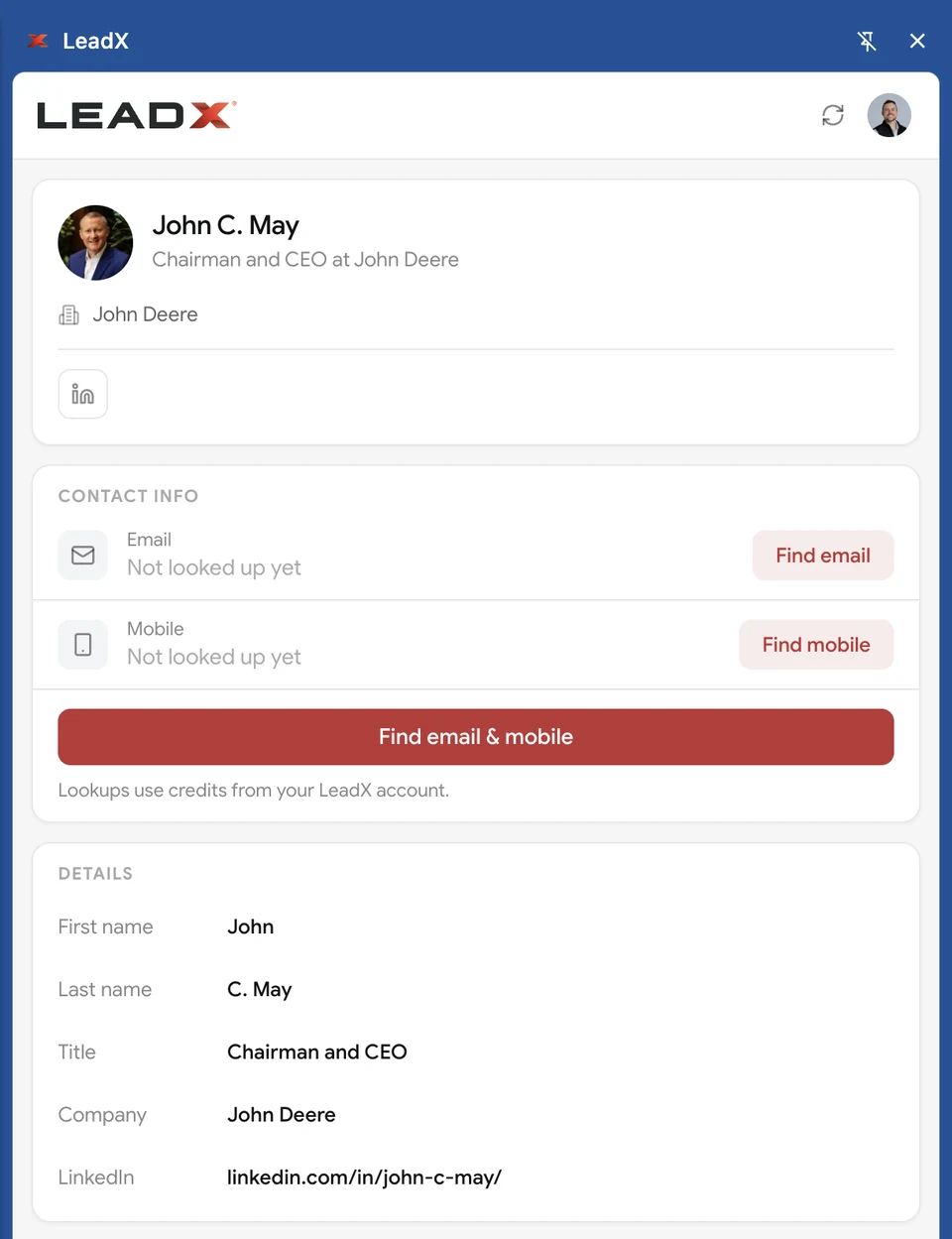
LeadX Chrome extension side panel showing a profile's name, title, and company with Find email, Find mobile, and Find email and mobile buttons

One lookup, wherever your team is working.

Enrichment starts with a person you have already identified. Give LeadX a name and company or a LinkedIn URL, choose email, mobile, or both, and review the result before it goes into outreach. Lookups use credits from your LeadX account. Learn how to find and verify a contact and enrich a spreadsheet.

Where to Run It

Three ways to enrich a contact.

Use the Chrome extension for the profile in front of you, the platform for a person you already know, and Bulk Enrichment when you have a list.

Chrome Extension

Look up a contact from the LinkedIn profile you’re viewing.

Open the LeadX side panel on a LinkedIn profile and it picks up the person’s name, title, company, and profile URL. Choose Find email, Find mobile, or Find email & mobile to run the lookup without leaving the page. Get the extension from the Chrome Web Store

Chrome side panel LinkedIn profiles Email, mobile, or both
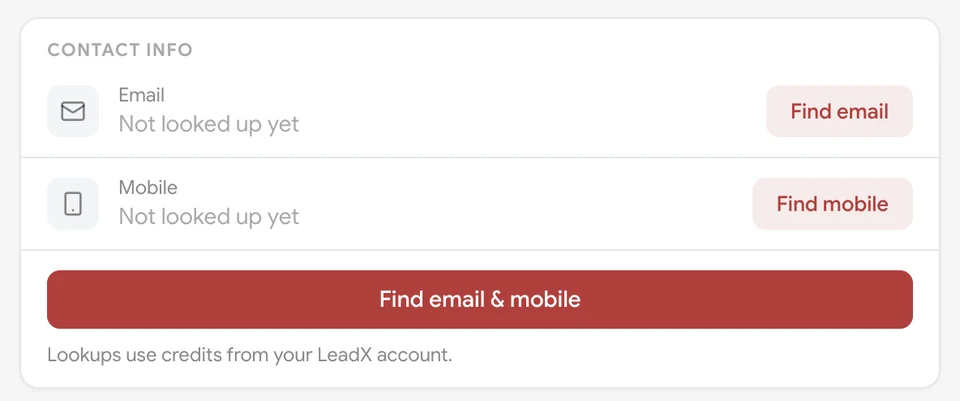
Contact info card in the LeadX Chrome extension with Find email, Find mobile, and Find email and mobile buttons
LeadX Platform

Find an email or mobile number for someone you already know.

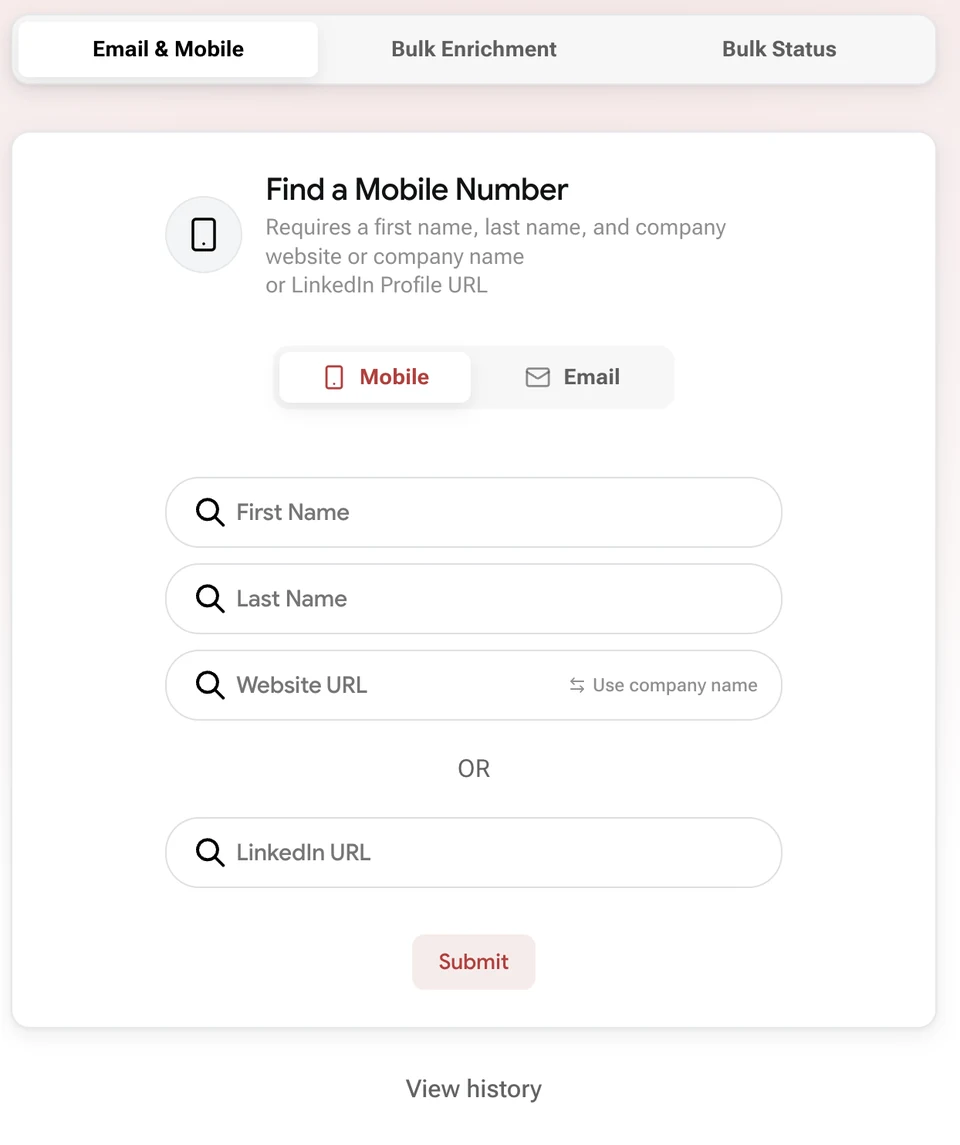
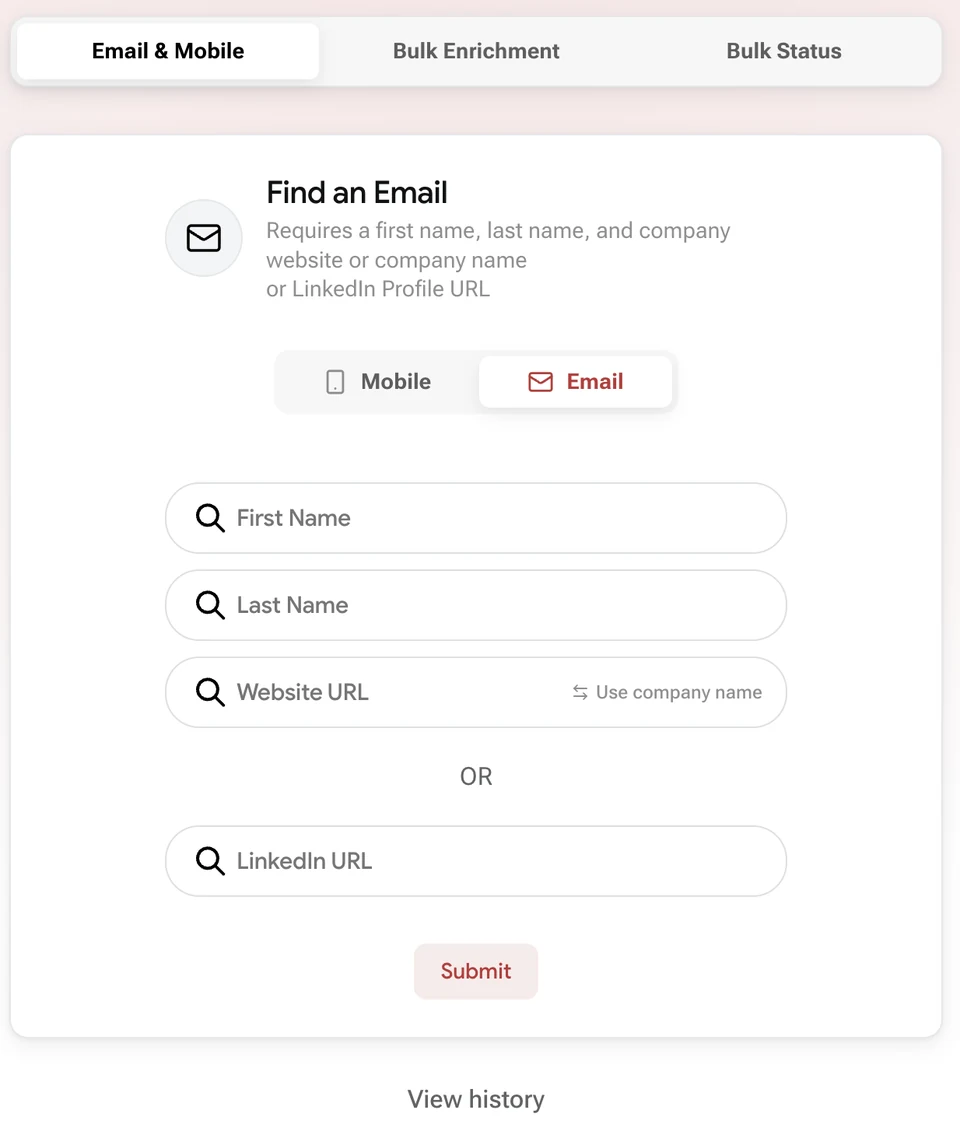
In Enrichment, open Email & Mobile and switch between Mobile and Email. Enter a first name, last name, and website URL or company name, or paste a LinkedIn URL. View history shows your earlier lookups.

Name and company LinkedIn URL Lookup history
LeadX Find a Mobile Number tool with first name, last name, website URL, and LinkedIn URL fields
LeadX Find an Email tool with first name, last name, website URL, and LinkedIn URL fields
Bulk Enrichment

Enrich or validate an entire spreadsheet.

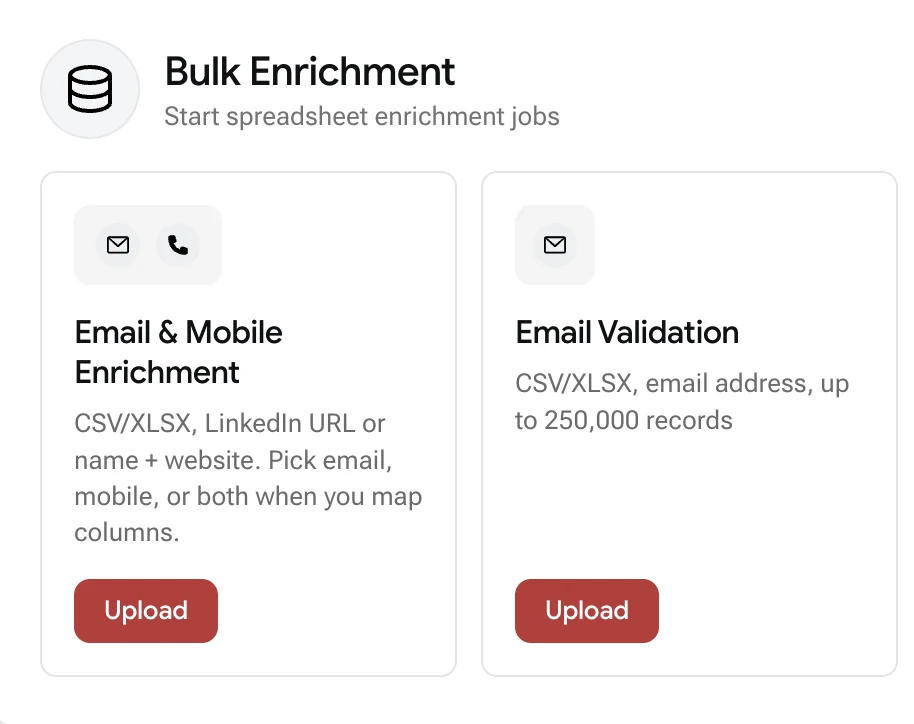
Upload a CSV or XLSX file with a LinkedIn URL or a name and website on each row, then pick email, mobile, or both when you map your columns. Email Validation checks files of up to 250,000 email addresses. Track each job in Bulk Status.

CSV and XLSX Email validation Bulk Status
LeadX Bulk Enrichment screen with upload options for Email and Mobile Enrichment and Email Validation
What’s Included

From a name to a way to reach them.

Work Email

Find a business email address

Look up the work email for a named person at a company, with a validation status to review before you send.

Mobile

Find a mobile number

Add a mobile number where one is available, for teams that call as well as email.

Inputs

Name and company, or a LinkedIn URL

Start from a first name, last name, and website or company name, or from a LinkedIn profile URL on its own.

Validation

Check addresses before outreach

Email validation returns Valid, Invalid, Risky, or Unknown so you can decide what belongs in an outreach list.

Bulk

Whole lists in one job

Run CSV and XLSX files through Bulk Enrichment and follow each job in Bulk Status.

API

Lookups inside your own systems

Call the email and mobile number lookup endpoints from your CRM, product, or data pipeline.

Explore API & Bulk Data

Common Questions

Email and mobile enrichment questions, answered.

What is email and mobile enrichment?

Email and mobile enrichment takes a person you have already identified — by name and company, or by LinkedIn profile URL — and returns the work email address or mobile number associated with them. It fills in the contact channels missing from a prospect list, a CRM record, or a profile you are viewing.

What do I need to look up an email or mobile number?

Either a first name, last name, and the company’s website or company name, or a LinkedIn profile URL on its own. The same inputs work for both email and mobile lookups in the LeadX platform.

How does the LeadX Chrome extension work?

Open the LeadX side panel on a LinkedIn profile and it picks up the name, title, company, and profile URL from the page you are viewing. Choose Find email, Find mobile, or Find email & mobile to run the lookup without leaving the profile. Lookups use credits from your LeadX account. Install it from the Chrome Web Store.

Can I enrich a whole list at once?

Yes. Bulk Enrichment accepts a CSV or XLSX file with a LinkedIn URL or a name and website on each row. You choose email, mobile, or both when you map your columns, then follow the job in Bulk Status. See the guide to enriching a spreadsheet.

Does LeadX validate email addresses?

Yes. Email validation returns a Valid, Invalid, Risky, or Unknown status so you can decide which addresses belong in an outreach list. Bulk Email Validation accepts CSV or XLSX files of up to 250,000 records.

Is every lookup guaranteed to return a result?

No. Coverage varies by person, and a completed lookup does not guarantee that an email or mobile number was found. Review the returned status before using an address.

Is email and mobile enrichment available through the API?

Yes. The LeadX API includes email and mobile number lookup endpoints for teams that enrich records inside their own systems. See the API & bulk data page or the API documentation.

Reach the Right People

See how LeadX email and mobile enrichment fits your prospecting workflow.

Get Demo